Stage 1: In Twilio
Note: Whatsapp integration would be support only StudioPro version grater than or equal to v2.9.0 otherwise contact us to customize.Note: There is no support avilable without having facebook business approved account for whatsapp features.
Navigate to the Messaging > Senders > WhatsApp Senders section in the Twilio Console. Click the "Submit a WhatsApp Sender" button to create a new sender profile. If you already have a WhatsApp sender, the button will say "New WhatsApp Sender". Here you can create a new sender with your verified facebook business id.
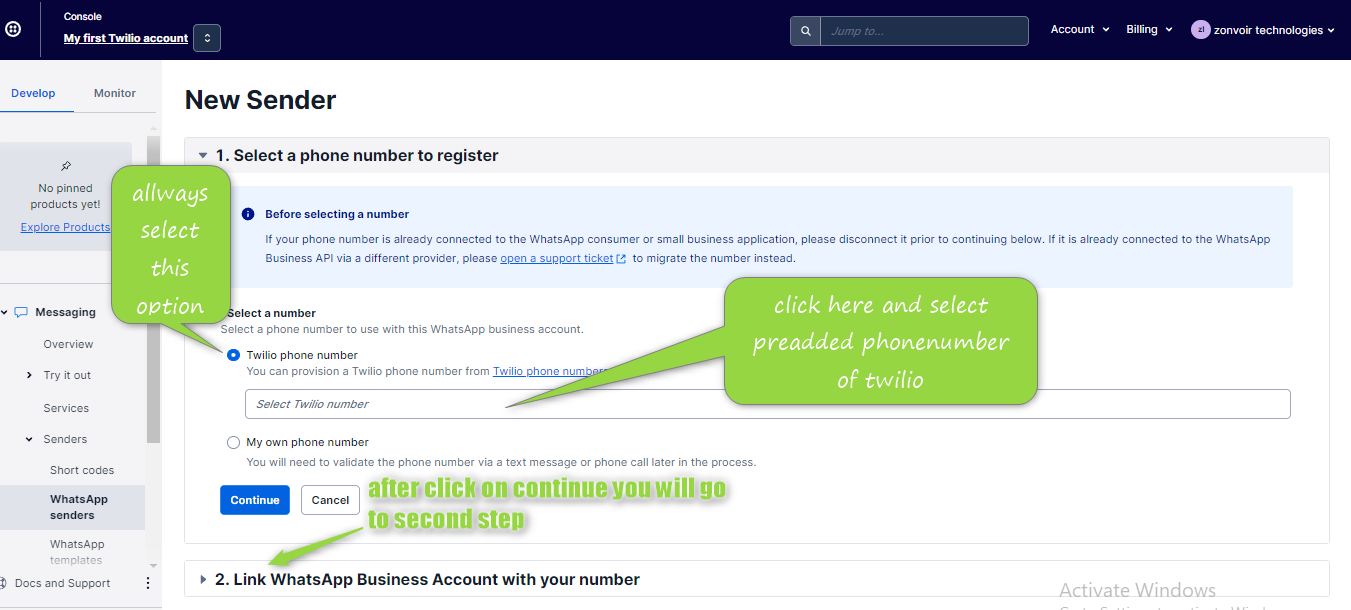
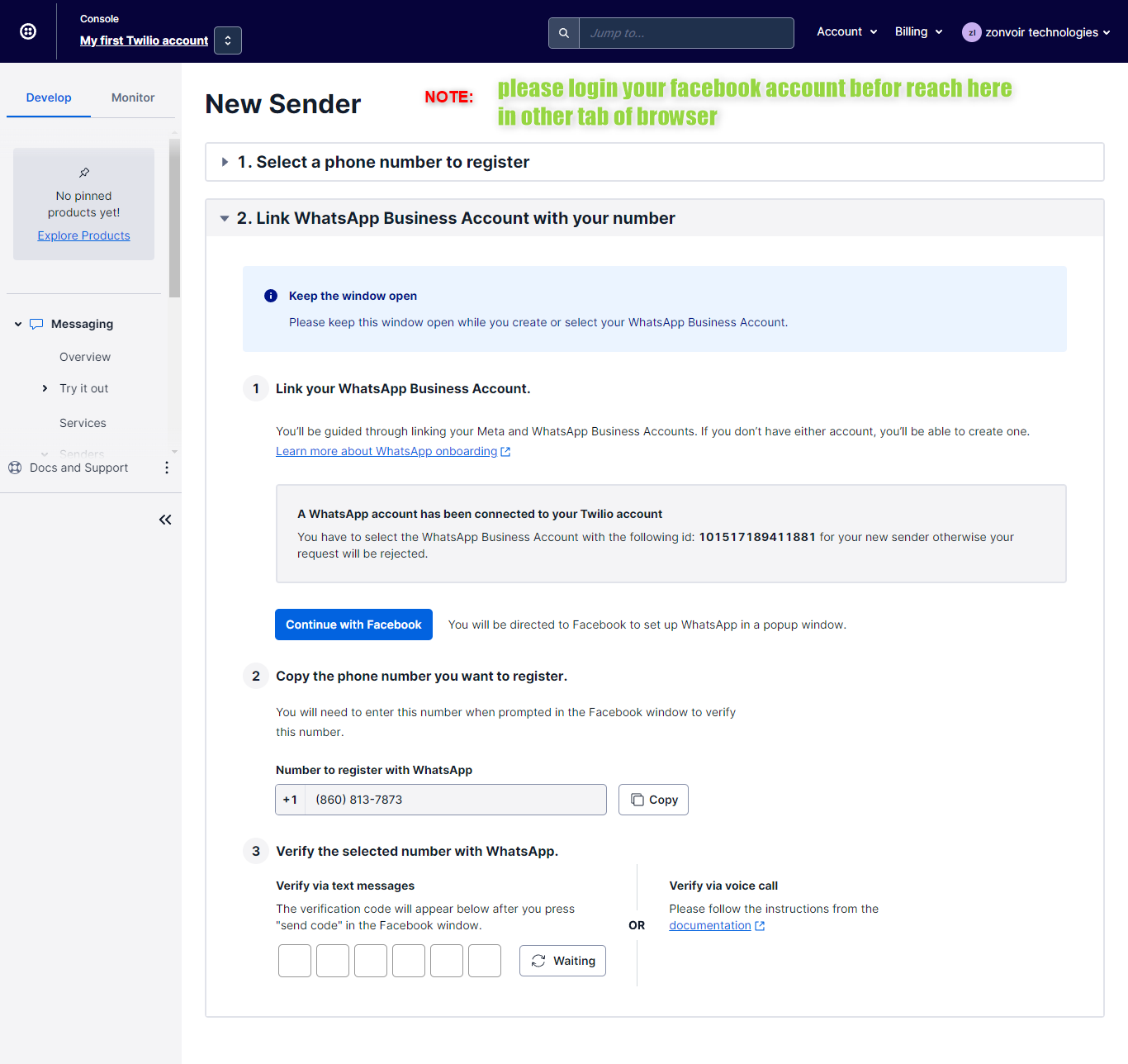
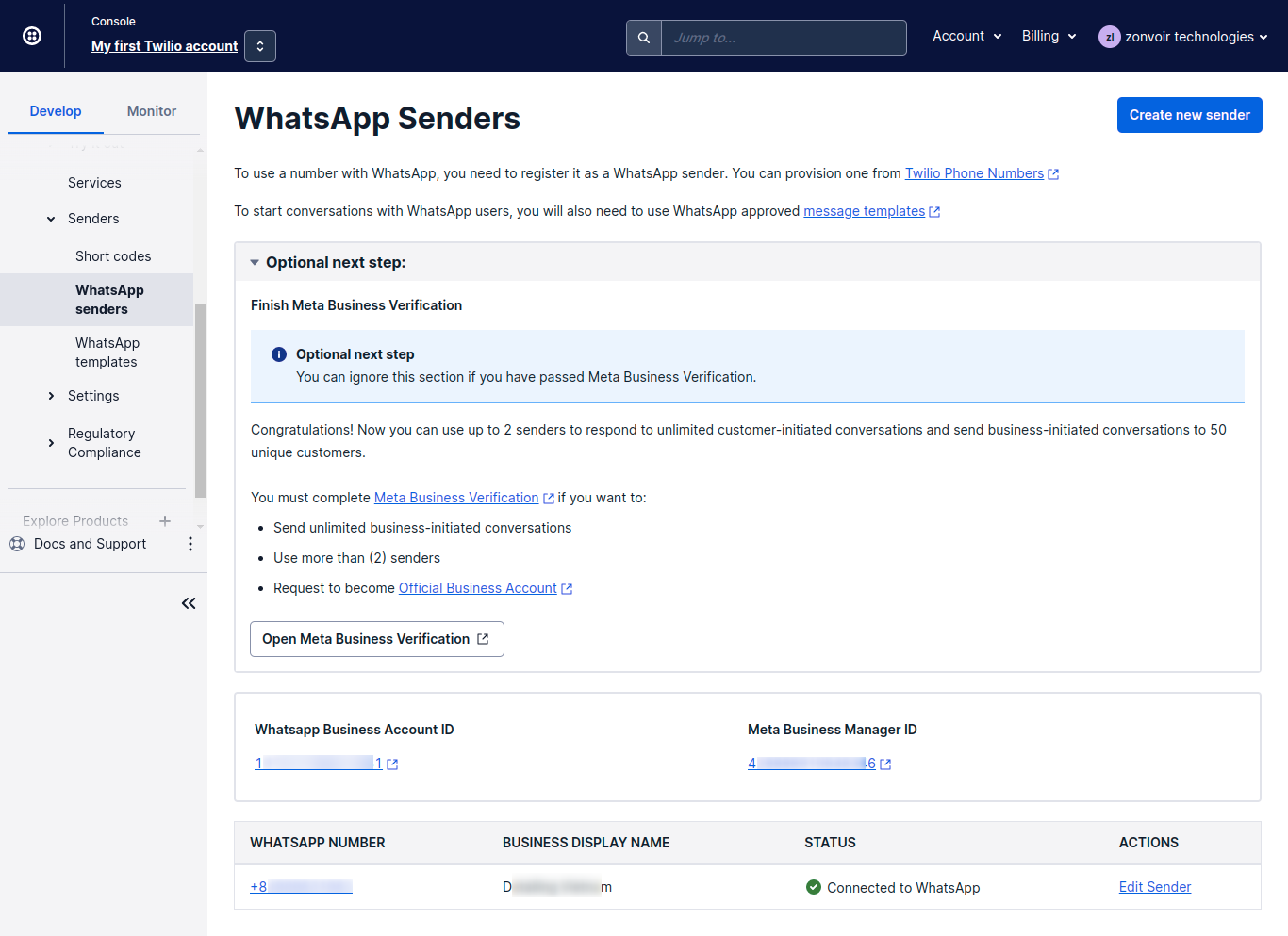
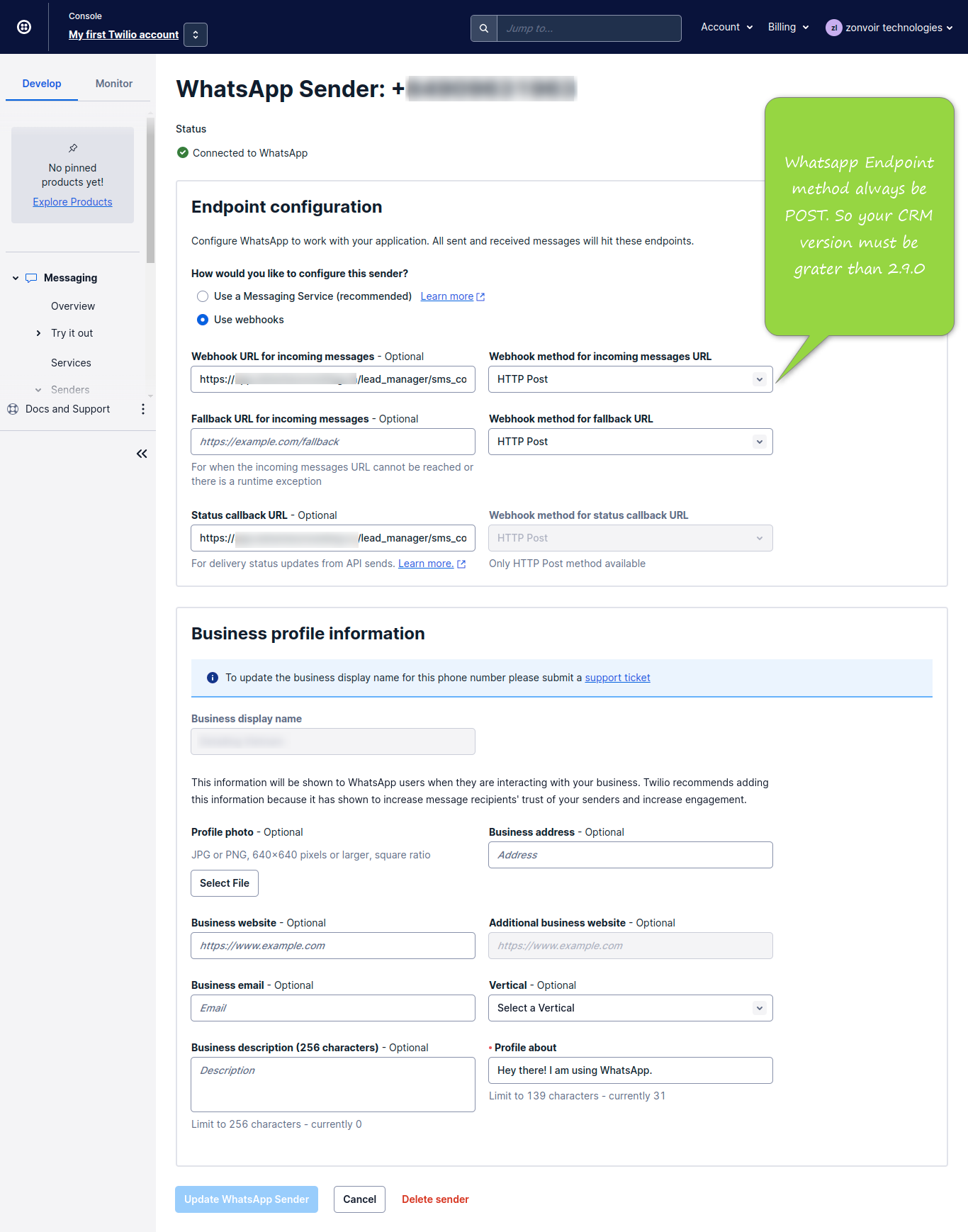
Configure the above sender endpoint on just click on sender number. Note: all webhhooks would be set on post because whatsapp endpoint only support post.
Stage 2: Whatsapp Templates
Access the WhatsApp Message Templates page in Console by navigating to Messaging -> Senders -> WhatsApp Templates. Click the Submit a Message Template button. If you are not creating a template for the first time, you will see the New message template button. Click it to create additional templates. Read more about it click here.
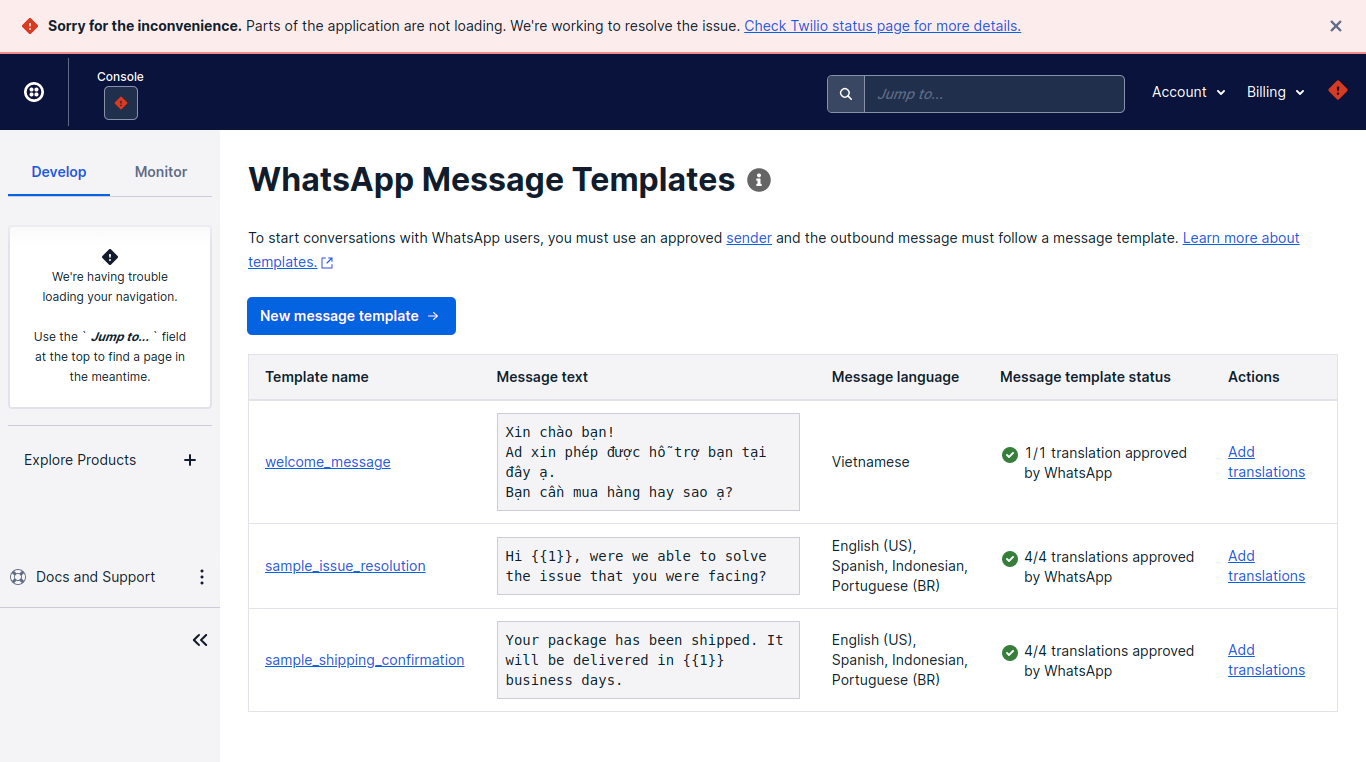
All these above template content should be add here to. Navigate to CRM Setup >> Lead manager >> whatsapp template >> click on add template
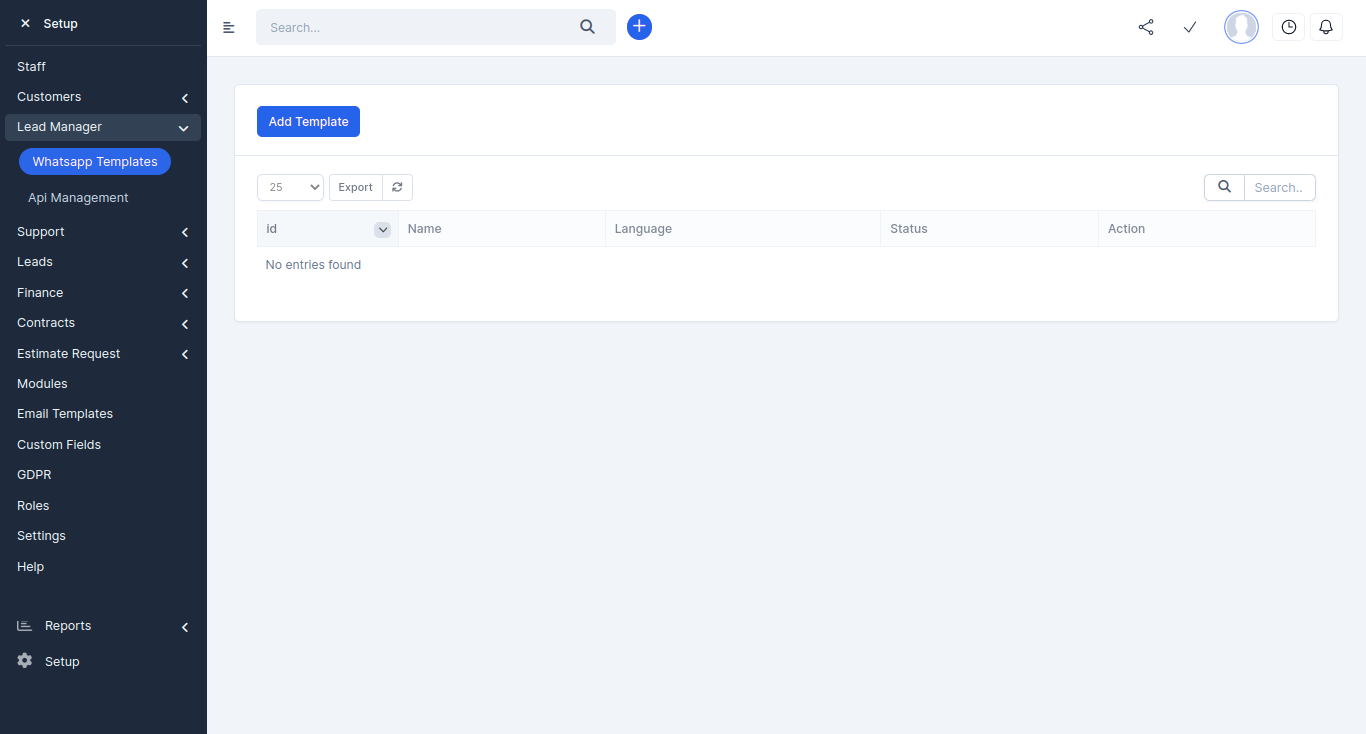
Stage 3: In StudioPro CRM
Integration of Lead Manager module with whatsapp is too easy if you have a verified bussiness account on Facebook and approved by whatsapp.
Staff contact (number provided by twilio) should be whatsapp enabled. To nevigate this action go to you staff profile and update `Is twilio number whatsapp enable` to "yes"
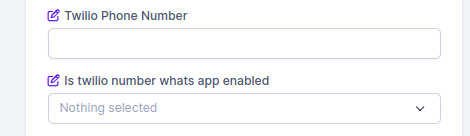
Client/Lead contact (phone number) should be whatsapp enabled. To nevigate this action go to you Client/Lead profile and update `is twilio number whatsapp enable` to "yes".